Creating a Survey123 Form from an Existing Feature Service
There are times when a survey will need to be created on top of an existing feature service. Some reasons why this may need to happen include: utilizing services that are pointing at commercial databases, using existing data, creating multiple surveys pointing at one feature service.
There are certain limitations with mapping the ArcGIS geodatabase model to an XLSForm, many of which present themselves when working with repeats. If your feature service has repeats (related tables) in it please refer to this blog in addition to this document.
How to Create a Survey on an Existing Feature Service
-
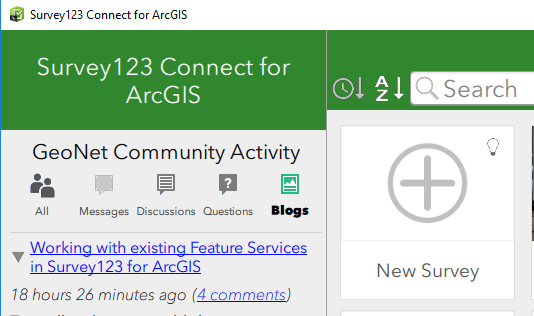
Open Survey123 Connect and click New Survey.
-
Select Feature Service and search for the feature service you would like to use to build your survey.
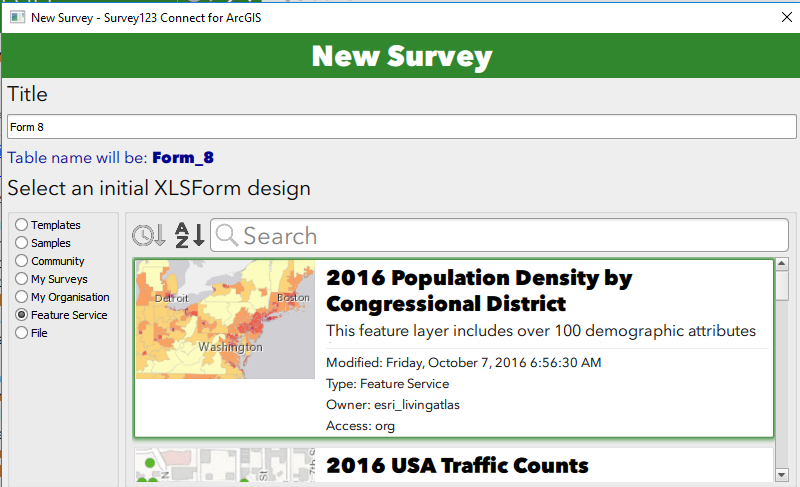
Note: you will see feature services that have line and polygon geometries, be sure to select only a feature service with a point geometry.
-
Give your survey a title and click Create Survey.
Survey123 Connect then looks at your feature service, checking all fields, related tables and geodatabase domains. A new XLSForm will be created for you as a starting point for your survey, the initial XLSForm design.
The Initial XLSForm Design
Survey123 Connect will add a new question to your initial XLSForm design for every field in the first layer of your feature service. The questions will be added to the survey XLSForm worksheet in the same order as fields in your feature layer.
The initial XLSForm design assigns the XLSForm question types based on the corresponding feature layer field type, according to the following table:
| Feature layer field type | Question type in initial XLSForm design |
|---|---|
| esriFieldTypeInteger | text |
| esriFieldTypeDouble | decimal |
| esriFieldTypeString | integer |
| esriFieldTypeDate | datetime |
| esriFieldTypeGeometry (point) | geopoint |
| esriFieldTypeGUID | text |
There are some notable exceptions to the rule above.
-
First, reserved fields in your feature layer will not be added to your XLSForm: ObjectID, GlobalID and Editor Tracking Fields will be ignored.
-
If your layer includes attachments, a single new image question will be added to your XLSForm.
-
Fields in your feature layer that have a coded value domain will be modeled as select_one questions and the corresponding coded values will be automatically added as a list in the choices worksheet.
In the event that the first layer in your feature service is related to other layers or standalone tables, you will see the presence of repeats in the XLSForm. In Survey123 related geodatabase relationships are modeled as repeats. The name of the repeat will be defined by the table name of the related table or layer and cannot be changed. Within the XLSForm repeat block, you will find questions corresponding to the fields found in the related child table. The rules for how questions are added within a repeat are exactly the same as for questions in the main feature layer.
The columns with information based on the feature service in the initial XLSform design are as follows:
-
Survey Sheet:
-
Type
-
Name
-
Label
-
Required
-
Bind::esri:fieldType
-
Bind::esri:fieldLength
-
-
Choices Sheet:
-
List_name
-
Name
-
Label
-
-
Settings Sheet:
-
Form_title
-
Form_id
-
Submission_url
-
If the feature service you are basing the initial XLS form design on has more than one layer all the fields will be pulled in and the user will need to narrow down the fields to the desired layer and put the name of the layer in the form_id column of the settings sheet. By default, your initial XLSForm design will always point to the first layer found in your feature service.
At the moment Survey123 Connect will ignore range value domains, although if you like you can model them as constraints in the XLSForm survey worksheet relatively easy. Also, if your feature layer has subtypes and each subtype has been assigned a coded value domain, Connect will ignore the domains as well. If you wanted to model that, you could setup cascading selects manually.
Modifying the Initial XLSForm Design
Provided your edits don't change the schema of the feature service, you can make a variety of changes to the initial XLSForm design. This section goes over the fields that you can make edits to.
Survey Sheet:
| Survey123 XLSForm Column | Can be updated without feature service updates? | Comments |
|---|---|---|
| type | Yes | Change of type must be compatible with field type (ex: text to select_one, date to dateTime) |
| name | No | |
| label::en | Yes | |
| hint | Yes | |
| constraint | Yes | |
| constraint_message | Yes | |
| required | Yes | |
| required_message | Yes | |
| appearance | Yes | |
| default | Yes | Must be compatible with any domain values |
| readonly | Yes | |
| relevant | Yes | |
| calculation | Yes | |
| choice_filter | Yes | |
| repeat_count | Yes | |
| label::language(..) | Yes | |
| hint::language(..) | Yes | |
| media::audio | Yes | |
| media::image | Yes | |
| body::accuracyThreshold | Yes | |
| bind::esri:fieldType | No | |
| bind::esri:fieldLength | Yes | Can only shorten, cannot lengthen |
| bind::esri:fieldAlias | ||
| body::esri:inputMask | Yes | |
| bind::esri:parameters | Yes | |
| bind::esri:saveIncomplete | Yes |
Notes:
-
You can remove as may questions as you would like, you can also remove repeats or questions in repeats. Questions in repeats cannot be moved outside of the repeat.
-
You can reorder questions as much as you would like.
Choices Sheet:
| Column | Can this be updated? | Comments |
|---|---|---|
| list_name | No | |
| name | No | |
| label | Yes | |
| image | Yes | |
| label::language(..) | Yes |
Notes:
-
If you add a new list for a given field this will not cause a domain to be applied to a field in the feature service.
-
You can delete choices but you cannot add them to a list that has been applied to a field with a domain.
Settings Sheet:
| Column | Can this be updated? | Comments |
|---|---|---|
| form_title | Yes | |
| form_id | Yes | |
| instance_name | Yes | |
| submission_url | No | |
| default_language | Yes | |
| version | Yes | |
| style | Yes |
Adding Questions:
There are certain types of questions that can be added without affecting the existing schema of the feature service.
-
Groups – can be used to break down questions in your survey into logical sections
-
Notes – can be used to provide users with critical information or feedback to help capture data more efficiently
All other types of questions can be added without affecting the existing schema by using the bind::esri:fieldType of null. This could prove useful for questions that are used to drive the relevant logic of the survey or to gather information used in a calculation.